 <
<
<
<
 Linux Ricing

This guide explains how to create an ultra‑lightweight MATE desktop on Arch/EndeavourOS (or Artix) while keeping modern transparencies, effects, and excellent responsiveness.
The goal is to replace Caja with PCManFM for better performance, use lightweight applications instead of the default ones, and keep MATE minimal (no mate-extra) for maximum speed.
Ensure you already have an Arch/EndeavourOS installation with:
If Xorg is missing:
sudo pacman -S xorg-server xorg-xinitInstall LightDM and enable it:
sudo pacman -S lightdm lightdm-gtk-greeter
sudo systemctl enable lightdm
2. Install Minimal MATE
sudo pacman -S mateAdd the volume applet:
sudo pacman -S mate-media3. Replace Caja With PCManFM
sudo pacman -Rns caja
sudo pacman -S pcmanfm
Set PCManFM as your default file manager:
Control Center → Preferred Applications → File Manager → PCManFM
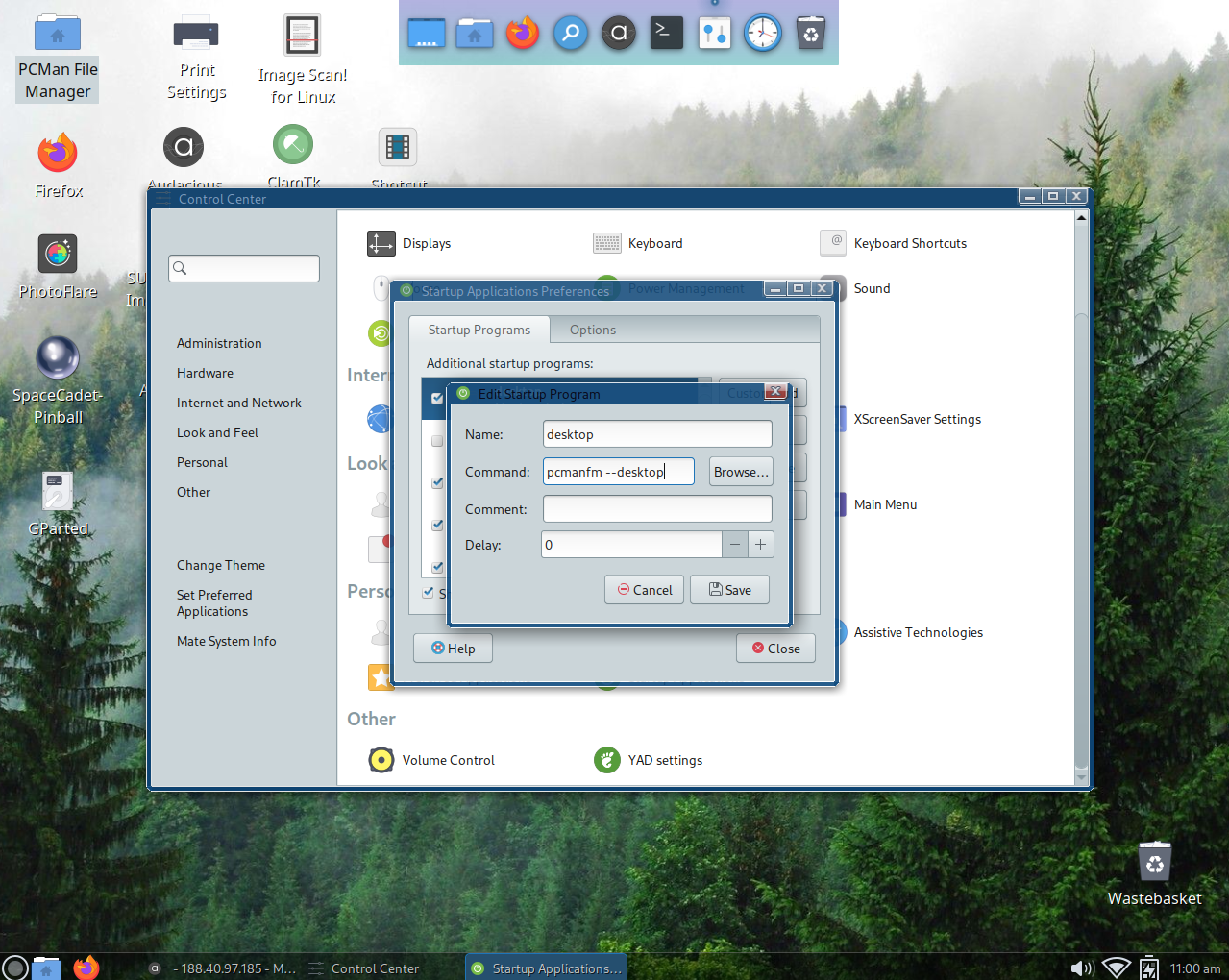
4. Enable the PCManFM Desktop
Open: Control Center → Startup Applications Add a new startup entry with the following command:
pcmanfm --desktopLog out and log back in to apply the changes.
Note: Advanced users can also create a .desktop file manually in ~/.config/autostart, but this is not required.
5. Install Lightweight Replacement Apps
sudo pacman -S lxterminalsudo pacman -S viewniorsudo pacman -S photoflaresudo pacman -S leafpadsudo pacman -S galculatorsudo pacman -S atrilsudo pacman -S abiword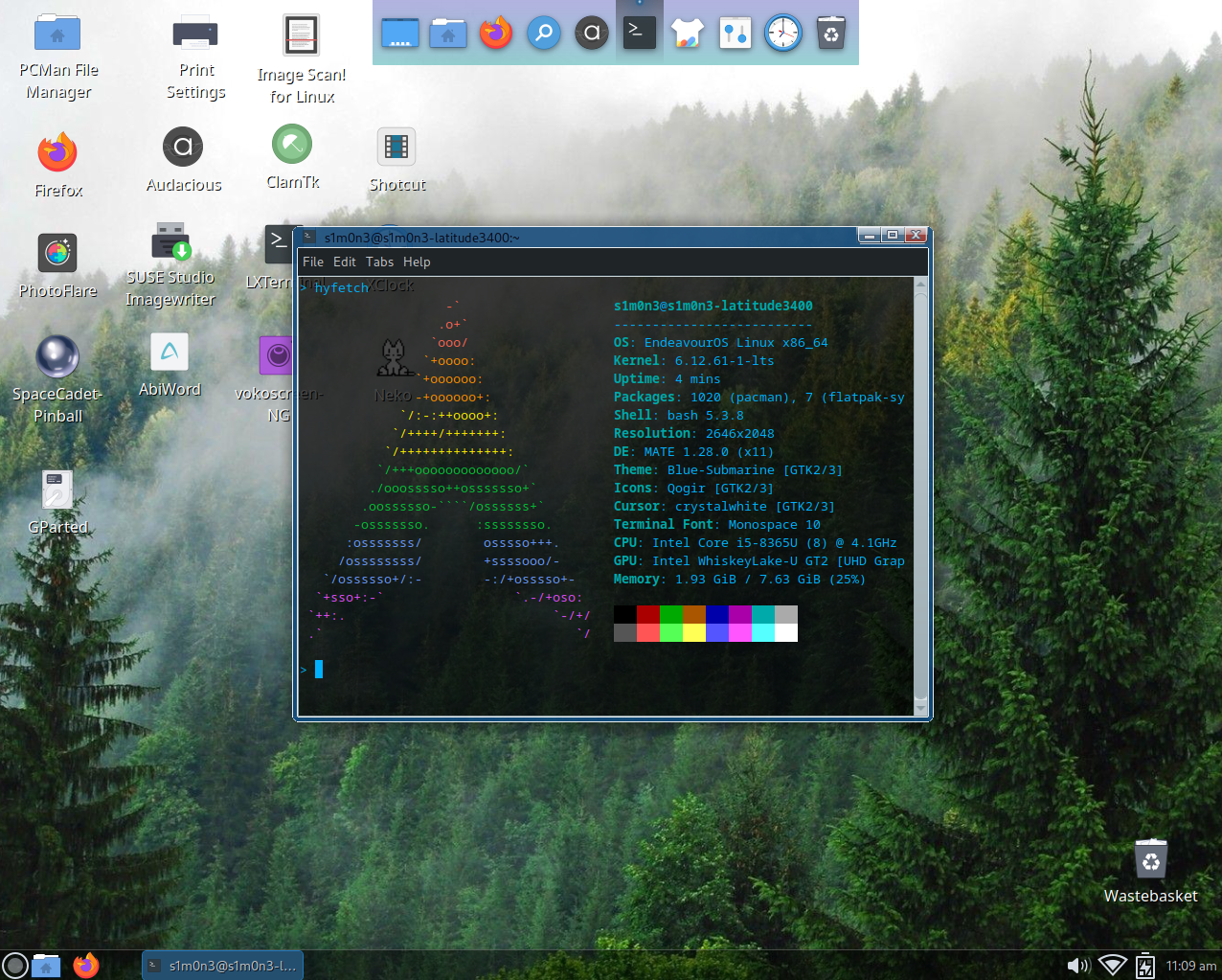
6. Install Plank (Lightweight Dock)
Install Plank:
sudo pacman -S plankTo start Plank automatically, open: Control Center → Startup Applications
Add a new startup entry with the following command:
plankAfter logging back in, configure Plank with these recommended settings:
Note: Creating a manual .desktop file in ~/.config/autostart is optional and not required.
7. Recommended Themes, Icons, and Cursors
Note: The Blue Submarine theme is a default MATE theme.
8. Effects and Transparency
No need for Picom. Marco’s built-in compositor is light and efficient.
Enable via: Control Center → Windows → Enable software compositing.
LXTerminal supports transparency with Marco.
9. Remove Unused Dependencies (Orphans)
sudo pacman -Rns $(pacman -Qdtq)Removes only unused dependencies.
10. Final Result
You now have a MATE desktop that is:
Perfect for older hardware, low-RAM systems, or anyone who wants a clean and fast experience.
 Linux Ricing

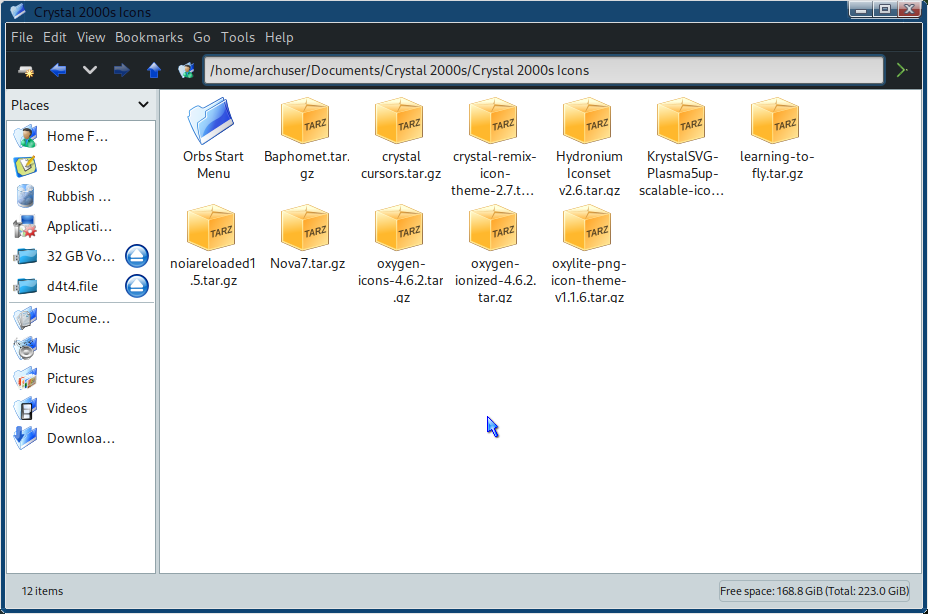
As part of this setup, I created a personal collection of icons inspired by the
early 2000s crystal/glass aesthetic, mixed with a modern touch.
The goal is to recreate the visual feeling of KDE, Windows XP, and Windows Vista,
while keeping compatibility with modern Linux desktops.
📁 Collection Structure
Crystal 2000s/
├── Light/
│   ├── Oxygen
│   ├── Oxygen Customized
│   ├── Oxylite
│   ├── KrystalSVG
│   ├── Nova7
│   └── Hydronium
├── Dark/
│   ├── LTF2 (learning to fly)
│   ├── Crystal Remix
│   ├── Fekete
│   └── Baphomet
├── Cartoon style/
│   └── Noia KDE Reloaded 2019
└── Cursors/
    └── Crystal/
        ├── White
        ├── Red
        ├── Green
        ├── Gray
        └── Blue
Download the icons from here: Crystal Icons Pack
🎨 Icon Style Philosophy
The icon themes are based on classic crystal and glass effects typical of the
2000–2008 era, featuring:
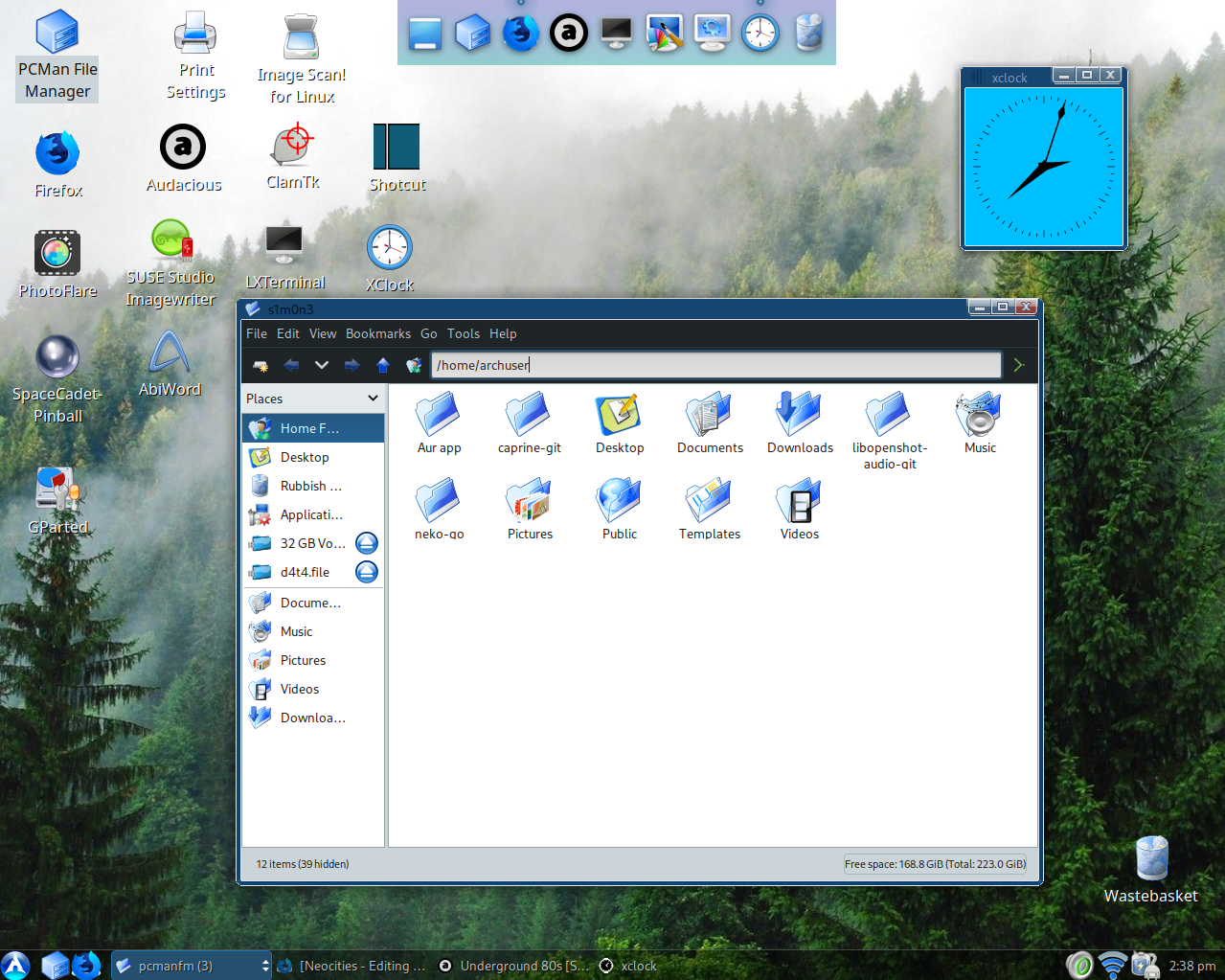
They pair extremely well with MATE, XFCE, and other lightweight desktop environments, especially when combined with themes inspired by Windows XP, Vista, or early KDE.
🐧 Linux Orbs (Vista-Style Logos)
In addition to application icons, I also worked on a set of
Linux distribution logos redesigned as glossy orbs,
inspired by the Windows Vista start menu and system icons.
Some distributions were missing or incomplete, so I manually recreated and adapted
their logos to match the existing crystal style.
For example, the Arch Linux orb was added by modifying and extending an existing
icon pack originally found on GNOME/KDE Look:
GNOME/KDE Cristal Look – Windows style Start Orbs
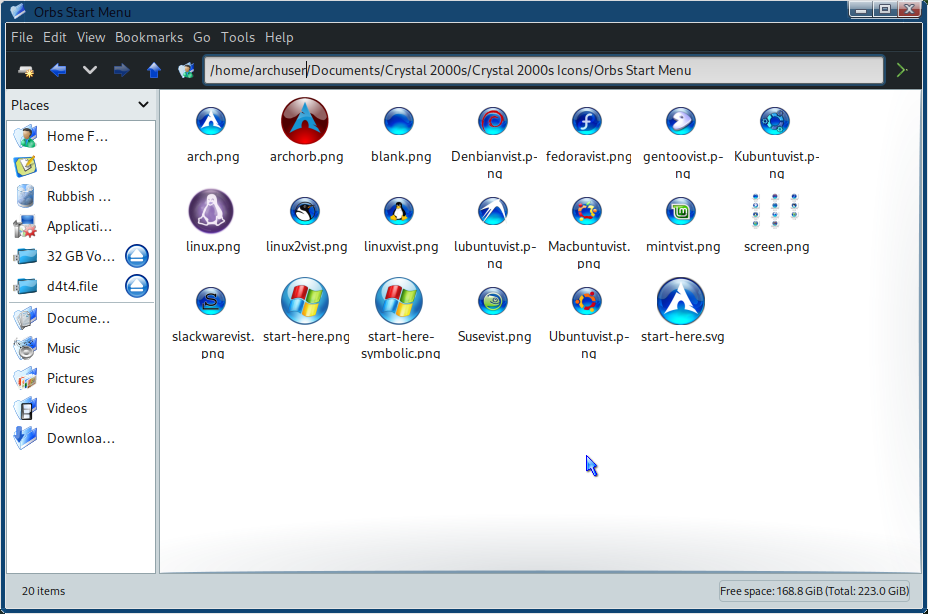
All added or modified logos were carefully matched in:
🖱️ Crystal Cursor Themes
The collection also includes crystal-style cursor themes, available in multiple colors:
These cursors are lightweight, highly visible, and perfectly suited for transparent and glass-themed desktops.
💡 Integration With This Setup
The Crystal 2000s collection integrates perfectly with:
This extra tool completes the visual identity of the system, turning a lightweight desktop into a cohesive retro-modern Linux experience.
 Linux Ricing
This guide shows how to transform the MATE desktop environment on
EndeavourOS Linux into a faithful modern recreation of Windows XP.
By combining XP Embedded themes, Vista-style icons, and Metacity-based window
decorations, the result closely resembles the classic Microsoft system while
remaining fully modern, secure, and functional.
This setup is ideal for users who love vintage desktop aesthetics but
still want a lightweight and up-to-date Linux system.
📥 Useful Downloads
Remove arrow from MATE Compact Menu:
Download
Windows XP GTK Theme:
GNOME Look
Windows XP Icons:
GNOME Look
Windows Vista Icons:
GNOME Look
Metacity – Luna Element Blue:
Pling
Metacity – Luna Element Black:
GNOME Look
📚 Reference Article
For historical context and nostalgia:
Neowin – Looking Back on Windows XP
Note: MATE is based on the GNOME 2 design philosophy, not GNOME 3. This makes it particularly suitable for recreating classic desktop layouts such as Windows XP.
OS: EndeavourOS Linux x86_64
Kernel: 6.8.7-arch1-2
Desktop Environment: MATE 1.28.0
Window Manager: Metacity (Marco)
GTK Theme: Windows XP Embedded (GTK2/GTK3)
Icons: Vista (GTK2/GTK3)
Terminal: mate-terminal
Thanks for watching and supporting retro-style Linux customization!
If you want to see more Linux customization videos,
visit my Odysee channel:
Linux Customization Playlist
Linux Ricing
This is the second and final part of the guide dedicated to transforming
Linux into a modern Windows XP experience.
After starting with MATE, the entire setup was fully migrated to
Xfce, using the terminal to gain finer control over components,
services, and visual behavior.
The visual result is further refined through the use of
XP-inspired GTK themes, classic icon packs, and animated cursors.
Thanks to the excellent work of the RedmondXP and
B00merang Project, the final look is polished, coherent, and
remarkably faithful to the original Windows XP style.
This approach is ideal for users who want the timeless aesthetics of Windows XP
combined with the stability, speed, and flexibility of a lightweight and modern Linux desktop.
RedmondXP GTK Theme:
GitHub Repository
Windows XP Themes (B00merang Project):
GitHub Repository
Windows XP Icons:
GNOME Look
Windows XP Cursor – White (Animated):
Pling
Windows XP Cursor – Black (Animated):
Pling
OS: EndeavourOS Linux x86_64
Kernel: 6.8.7-arch1-2 → 6.8.9-arch1-2
Desktop Environment: MATE 1.28.0 → Xfce 4.18
GTK Theme: Windows XP Embedded (GTK2 / GTK3)
Icons: Vista (GTK2 / GTK3)
Terminal: mate-terminal
Terminal Font: Monospace 10
This concludes the Windows XP visual transformation series.
A nostalgic desktop, rebuilt with modern Linux tools.
If you want to see more Linux customization videos,
visit my Odysee channel:
Linux Customization Playlist